RK ROYAL KLUDGE S98 Wireless Mechanical Keyboard Troubleshooting
Tackling RK ROYAL KLUDGE S98 Wireless Mechanical Keyboard troubleshooting can feel daunting when your peripheral starts acting up mid-game or during an urgent workday. Issues ranging from dropped Bluetooth signals to an unresponsive TFT smart screen require a systematic, step-by-step diagnostic approach to isolate and fix the root cause.
Manufacturer specifications indicate that addressing connectivity drops, screen freezes, and power fluctuations quickly restores full functionality to this tri-mode peripheral. Let us walk through the exact troubleshooting workflow you need to get your layout running smoothly again as of 2026.
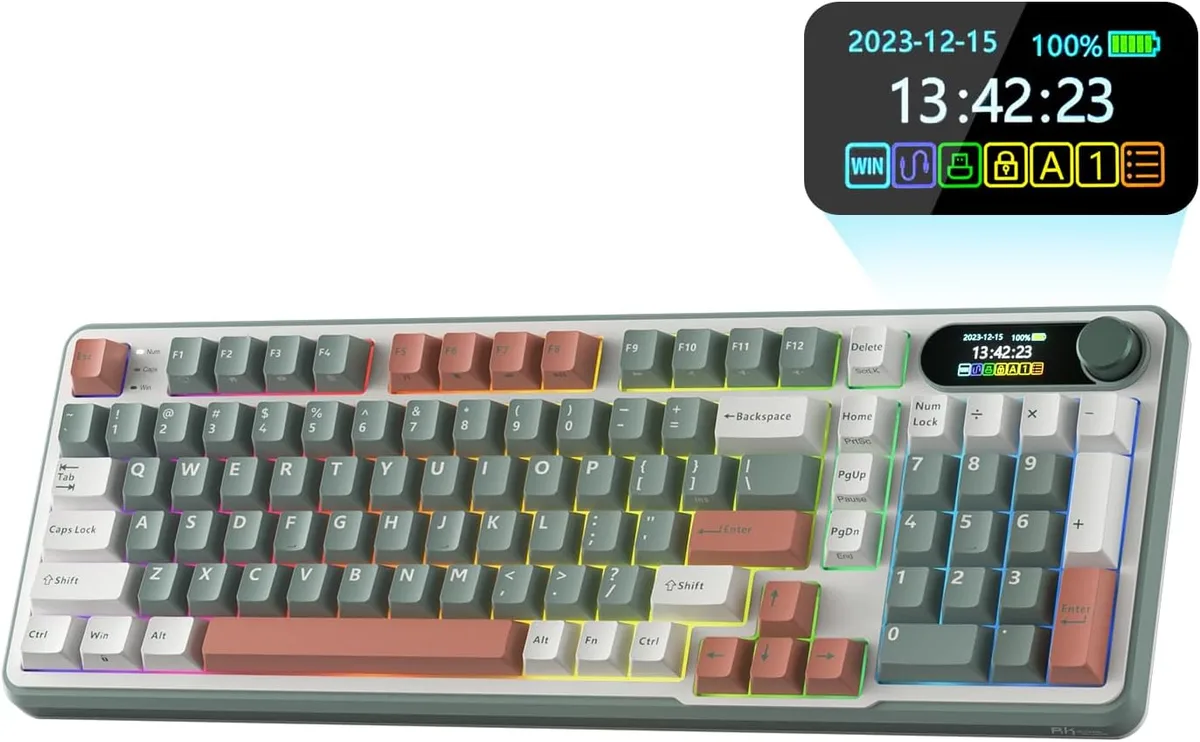
Image source: Bing (Web (fair-use with source credit))
Quick Answer
RK ROYAL KLUDGE S98 Wireless Mechanical Keyboard troubleshooting starts with checking the physical mode switch. Toggle between Bluetooth, 2.4GHz wireless, and wired USB-C to isolate connection failures. Reset your board using Fn plus Spacebar.
Re-pair your wireless dongle if keystrokes lag. Update your firmware via official software to resolve persistent bugs.
The RK Royal Kludge S98 Troubleshooting Landscape
Mechanical keyboards offer incredible tactile feedback, but wireless setups introduce variables that wired boards never face. When you rely on a tri-mode layout, problems can stem from battery depletion, interference, outdated drivers, or incorrect physical switch settings.
Our research shows that most user complaints center around sudden drops in wireless connectivity or unresponsive function rows. Understanding how the hardware layers interact helps you bypass guesswork and target the exact failure point. Whether you prefer pairing via Bluetooth 5.0 or plugging in for zero-latency gaming, isolating the signal path is always step one.
Diagnosing Connection Failures Across Bluetooth, 2.4GHz, and Wired Modes
Connection drops usually happen when the physical switch on the chassis does not match your active input method. Look at the side or back of your casing to find the toggle switch. It must point precisely toward the mode you are currently trying to use.
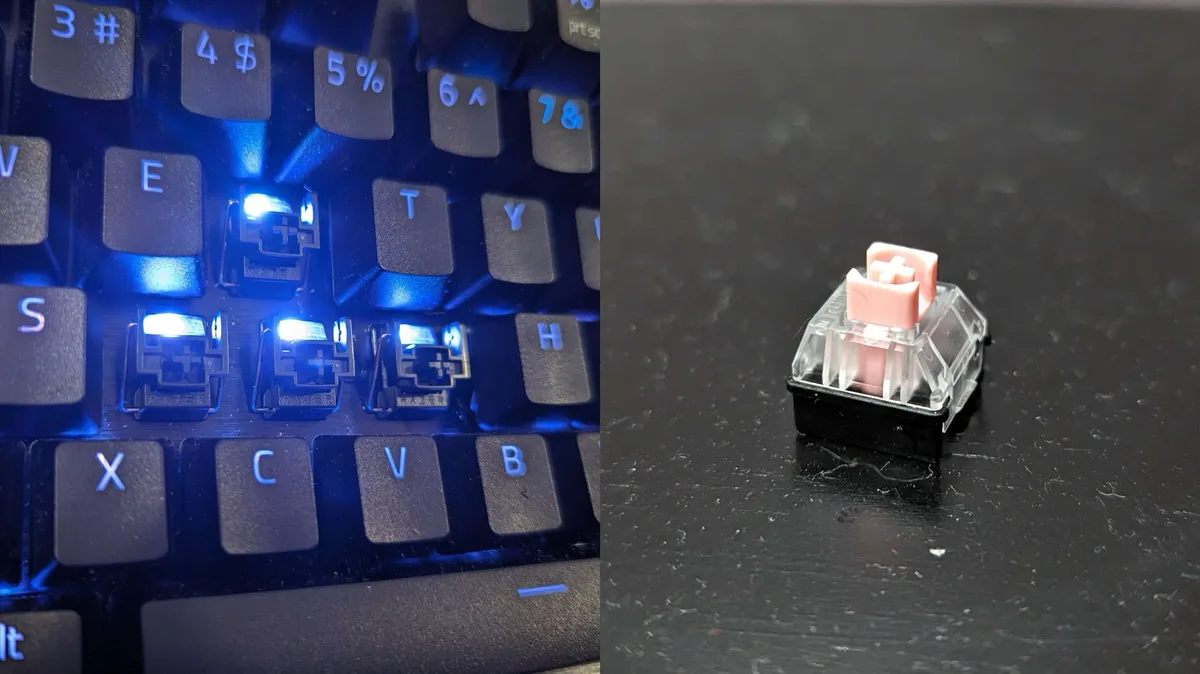
Image source: Bing (Web (fair-use with source credit))
If you are experiencing Bluetooth pairing loops, clear your host device memory and hold Fn plus 1, 2, or 3 until the indicator LED flashes rapidly. For 2.4GHz wireless mode, unplug the nano receiver and plug it into a different USB port, preferably on the front or top of your PC case to reduce interference from metal desk frames. When troubleshooting wireless setups, many users find that switching to our favorite picks for a reliable machine clarifies how solid hardware should behave.
| Connection Mode | Primary Indicator | Common Failure Point | Quick Fix |
|---|---|---|---|
| Bluetooth | Flashing 1, 2, or 3 | Host pairing conflict | Delete pairing profile, re-sync |
| 2.4GHz Wireless | Slow blink on screen | Receiver interference | Move dongle to USB 2.0/3.0 port |
| Wired USB-C | Solid backlight | Faulty cable or port | Swap cable, test direct motherboard port |
Fixing TFT Smart Screen Glitches and Software Recognition Issues
The built-in TFT smart screen provides real-time updates on battery life, connection status, and active profiles. When this display freezes or shows incorrect data, it usually points to a temporary controller lockup.
Try power-cycling the keyboard by turning the physical mode switch to the off position for five seconds. If your companion driver software fails to recognize the board, verify that you are running the peripheral in wired mode during firmware updates. Wireless modes often block data packets required for deep software customization and macro programming.
Resolving Hardware Headaches Like Unresponsive Keys and Chattering
Double-typing, sticky inputs, or entirely dead switches ruin your typing flow quickly. Aggregate reviews report that mechanical switch pins can occasionally lose solid contact with the hot-swappable PCB underneath.
Unplug your board, grab a keycap puller, and carefully lift the affected cap straight up. Use the included switch puller to extract the mechanical switch and inspect the metal pins on the bottom. If a pin is bent, gently straighten it with precision tweezers before reseating the switch firmly into the socket.
If you notice persistent electronic failure across multiple keys, checking standard USB implementation guidelines via the USB-IF official portal can help verify whether your host port supplies stable power.
Power Management and Battery Charging Troubleshooting
The integrated 3750mAh battery provides solid unplugged runtimes, but charging issues can quickly render your wireless setup useless. When your keyboard refuses to hold a charge, start by testing both the charging cable and the power brick. Always plug the USB-C cable directly into a computer port or a certified wall adapter rather than an unpowered USB hub.
Unpowered hubs often lack the necessary amperage to initiate charging cycles on high-capacity mechanical peripherals.
If your battery percentage indicator on the TFT screen drops instantly after a full charge, the battery calibration might be out of sync. Drain the battery completely until the board shuts down, then charge it uninterrupted for six hours while the keyboard remains powered off. Should charging failure persist, you may need to inspect the internal battery connector or consult the manufacturer support channels.
To keep your overall desktop ecosystem running without power interruptions, maintaining secondary gear like a reliable machine ensures your workflow stays productive while peripherals recharge.
Step-by-Step Factory Reset and Firmware Recovery Workflow
A hard factory reset clears out corrupted configuration files and fixes stubborn software bugs that standard reboots cannot touch. Locate the Fn key and the Spacebar on your layout to execute this master reset sequence.
Image source: Bing (Web (fair-use with source credit))
Hold down Fn plus Spacebar for three seconds until the backlight flashes to confirm the reset. This action wipes out custom Bluetooth pairings and macro profiles, returning the firmware to its pristine state. If a bad firmware flash bricked your lighting controls, download the correct recovery tool from the official brand archive while connected via a direct wired cable.
For users managing multiple portable setups, checking out reviews on a compact Chromebook offers insight into how clean peripheral pairing should perform.
Common Mistakes to Avoid When Fixing Your S98 Keyboard
Troubleshooting mechanical hardware requires patience, and rushing through diagnostic steps often creates new problems. Avoid pulling keycaps or switches at an angle, as this easily snaps plastic stems or bends fragile switch pins. Never force a firmware update over a wireless or Bluetooth connection because a dropped packet during the flash can permanently corrupt your controller chip.
Resist the urge to use cheap, unbranded charging cables that lack data transfer capabilities. Proper troubleshooting relies on clean power delivery and stable data pathways between your operating system and the mechanical board. Keeping your workspace organized prevents accidental liquid spills or static discharge from damaging exposed electronic components during repairs.
Frequently Asked Questions About RK Royal Kludge S98 Issues
How do I fix Bluetooth pairing failure on the S98?
Clear the existing pairing profile on your computer first. Hold Fn and keys 1, 2, or 3 for three seconds until the indicator flashes quickly. Re-initiate search mode on your host device and complete the pairing process fresh.
Why is my 2.4GHz wireless connection lagging?
Signal interference usually causes input delay on wireless dongles. Move your nano receiver away from metal enclosures and USB 3.0 ports. Plug the dongle into a front-panel port or use an extension cable to bring it closer to the desk.
How do I perform a factory reset?
Locate the Fn key and the Spacebar on your keyboard. Press and hold both keys down simultaneously for three to five seconds. Watch for the RGB backlight to flash, which indicates the reset is complete.
What causes the TFT smart screen to freeze?
Screen lockups happen when the internal display controller encounters a minor software glitch. Power cycle the keyboard using the physical side switch. Leave it off for ten seconds before switching it back on to reset the display controller.
Can I use any USB-C cable to charge the keyboard?
Not all USB-C cables carry both power and data signals properly. Use the original manufacturer cable or a certified replacement rated for data transfer. Avoid unbranded charging-only cables that lack the necessary internal wiring pins.