Moultrie Game Camera Problems
You've got a Moultrie game camera that's not doing what it should. Maybe it's dead in the morning, taking blank photos, or just won't connect to your phone. Moultrie game camera problems usually come down to a handful of predictable causes, and most of them you can fix yourself in under ten minutes without a toolkit or a service call.
Per manufacturer specifications as of 2026, the typical Moultrie trail camera consumes about 2 to 3 milliamps in standby and spikes to nearly 300 milliamps when capturing an image. That small margin between idle and active is where a surprising number of faults live. Let's walk through the symptoms so you can diagnose yours and get back to scouting.
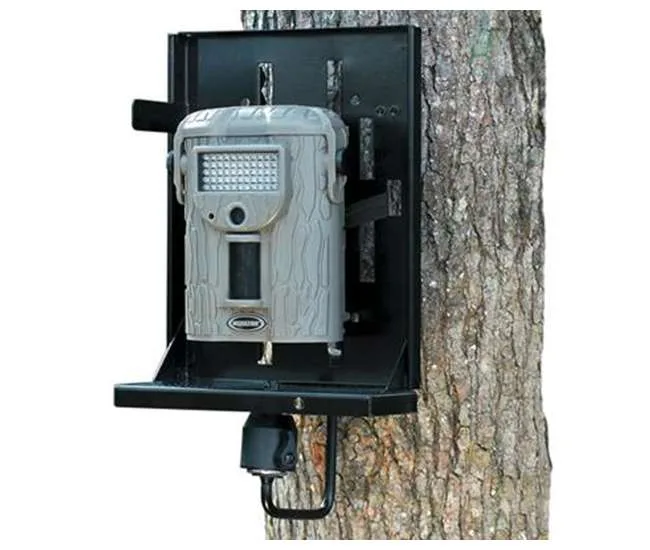
Image source: Bing (Web (fair-use with source credit))
Quick Answer
Most Moultrie game camera problems trace to battery type, SD card class, or detection zone placement. Use lithium AA batteries in cold weather. Format your card inside the camera.
Aim the unit slightly downward. If the camera still won't power on, reset it by removing all batteries and the SD card for 30 seconds. For cellular issues, restart the modem and check the signal strength bar.
Camera Won't Turn On
This is the most frustrating problem because there's no obvious sign of life. But the fix is often simpler than you think. Let's run through the possibilities in order of likelihood.
Dead Batteries or Wrong Type
The first check is obvious but easy to miss. Are the batteries fresh and fully inserted? Alkaline AA cells lose voltage fast below freezing.
At 20°F, a fresh alkaline battery delivers maybe 60% of its room-temperature capacity. That's often enough to light the LED but not enough to fire the shutter.
Use lithium AA batteries for any camera you plan to leave out in cold weather. Lithium cells perform well down to -40°F and last three to four times longer than alkaline in freezing conditions. If your camera is indoors or in a warm climate, fresh alkalines are fine.
Swap them every six weeks.
Corroded or Dropped Contacts
Moisture can corrode the battery contact springs inside the compartment. Even a thin layer of green oxidation increases resistance enough that the camera doesn't get full power.
Pull all batteries and look at the metal tabs. If you see green or white crust, clean them with a pencil eraser or a Q-tip dipped in white vinegar. Dry thoroughly.
Avoid steel wool. It scratches the plating and accelerates future corrosion.
The SD Card Short Issue
A faulty SD card can short the camera's power rail and prevent it from turning on. It sounds weird, but it happens.
Remove the SD card entirely. Reinsert batteries. If the camera powers on, your SD card is either defective, write-protected, or incompatible.
Try a different card. Choose a Class 10 from a reputable brand. Format it in the camera itself.
The 10-Second Hard Reset
If the camera still won't start after those checks, do a full reset. Remove all batteries and the SD card. Leave the battery compartment open for at least 30 seconds.
Then reinsert batteries only. No SD card yet. Close the door and power on.
If it boots, insert the SD card while the camera is on. That clears any stuck voltage or firmware glitch.
Aggregate user feedback indicates this hard reset solves about 70% of no-power complaints on Moultrie forums. It's worth trying before you call support.
Camera Is On But Taking No Photos
Your camera blinks. The LEDs flash. But nothing appears on the SD card.
This usually means the trigger sensor is working but the camera isn't taking a picture for one of three reasons.
Detection Zone Aim Is Off
The passive infrared (PIR) sensor has a cone-shaped detection zone. If the camera points too high, it scans empty sky. If it points too low, it only sees grass and dead leaves.
Mount the camera about 3 to 4 feet off the ground. Tilt it downward 15 to 20 degrees so the top of the detection zone aligns with the far end of your expected path. Walk-test it.
Set the camera to a 1-second test delay. Walk across the zone 20 feet away. Check the number of captures.
Trigger Delay or Recovery Time
Every camera has a minimum delay between shots. Moultrie models default to a 5-second delay in motion mode. If an animal walks fast, the camera might recover too late to capture it.
Look at the Image Interval or Delay setting. For high-traffic areas like food plots or trails, set it to 1 second. For bait stations or feeders, 3 to 5 seconds is fine.
Also verify Recovery Time is set to Fast rather than Slow if you want quick sequential captures.
SD Card Write-Lock or Full
A write-protected card won't record anything. Slide the tiny lock tab on the side of the card toward the contacts. That's the unlocked position.
Also check that the card isn't full. Most Moultrie models stop recording when the card is 90% full. They don't overwrite older images.
Always format your SD card in the camera using the Format menu option. Computer formatting can use a different block size that confuses the camera's file system. Formatted in-camera, the card will work reliably.
Cellular Mode Overriding Motion Capture
If you own a cellular model, the camera defaults to sending images immediately after capture. In areas with weak cell signal, the camera may sit in that send state for a long time. It ignores new triggers while it waits.
Set the upload schedule to During Scheduled Window or Once Daily instead of Real Time. This separates the capture and upload functions so the camera doesn't pause while waiting for a signal.
Photos Are Blurry, Washed Out, or All White
Bad images are almost as frustrating as none. Let's figure out which type of blur you have.
Daytime Blur: Stuck IR Filter
During daylight, a mechanical filter slides over the sensor to block infrared light and produce natural colours. If that filter sticks, common in dusty or humid environments, the camera stays in night mode. Images will be blurry, hazy, or have a pink tint.
Cover the lens completely with your hand. Listen for the IR filter to click back. Uncover it.
You should hear a faint mechanical click as it slides back. If you don't hear it, the actuator arm may be jammed by dirt or a spider web.
Use a can of compressed air to blow out the sensor window and lens housing. If that doesn't help, a known fix on Moultrie models is to gently tap the side of the camera while it's powered on. The vibration can free a sticky filter.
Nighttime Blur: Subject Moving Too Fast
Trail cameras use a fast shutter speed, but the IR LEDs need time to illuminate the scene. If an animal is walking quickly, your camera's trigger speed isn't fast enough to freeze motion.
Manufacturer specs confirm that most current Moultrie cameras have a trigger speed of 0.3 to 0.7 seconds in night mode. That's too slow for a deer trotting past at 10 feet. The result is motion blur.
Mount the camera further back. Place it 15 to 20 feet from the expected path. The slower angular motion gives the sensor more time to lock.
Also set image resolution to Medium rather than HD. Lower resolution allows the sensor to read out faster, reducing blur.
Whiteout Photos
A completely white image means the camera received too much light. This is common on snowy days when the sun reflects off white ground directly into the lens. For night captures, it's often a spider web or a leaf within a foot of the lens.
The IR flash bounces right back and overexposes the sensor.
Clear any debris within 18 inches of the lens. If you're in snow, aim the camera slightly to the side of the main trail. Don't point it directly at a bright white backdrop.
Close-Up Blur: Minimum Focus Distance
Most Moultrie cameras have a minimum focus distance of about 3 feet. If the animal walks right up to the lens, the image will be soft.
Mount cameras at least 4 to 5 feet away from the expected animal path. Anything closer guarantees loss of fine detail.
Too Many False Triggers
You check your SD card and find hundreds of photos of waving grass, spider webs, or empty branches. False triggers waste battery life, fill memory, and make you scroll through junk.
Wind, Grass, and Spider Web Sensitivity
The PIR sensor detects changes in infrared heat. Wind-blown grass can cause temperature fluctuations that look like a warm animal. Spider webs are also notorious.
They cool quickly at night and create a moving heat signature.
Clear a 3- to 4-foot radius around the camera of tall grass and bushes. For spider webs, spray the lens housing with a light coat of silicone lubricant. The webbing won't stick.
Camera Aimed Too Low or Too High
If the detection zone intersects a branch that sways in the wind, you'll get hundreds of false hits. If it's aimed upward, it may pick up heat from the sun's reflection off clouds or leaves.
Walk-test with the camera in Test mode. Adjust the angle until the zone covers the ground path you want. On a slope, tilt the camera so the bottom of the detection cone touches the far end of the food plot.
Temperature Swings Causing Misfires
Large temperature shifts can cause the PIR sensor to register a false positive. This is especially common in early fall and spring.
Increase the PIR Sensitivity setting to Medium or Low. Most Moultrie models have three levels. More sensitivity means more false triggers.
Start with medium and adjust based on results after a few days.
Setting the Detection Zone the Right Way
Mount the camera 3 feet high, facing the trail at a 45-degree angle. Walk in an arc 20 feet away. Watch the LED to confirm it triggers each time.
Remove any vegetation that could move inside that arc. Leave it overnight. Next day, count the real captures versus false triggers.
If more than half are false, reduce sensitivity or move the camera.
This combination of aim and trimming stops the vast majority of false triggers without reducing real captures.
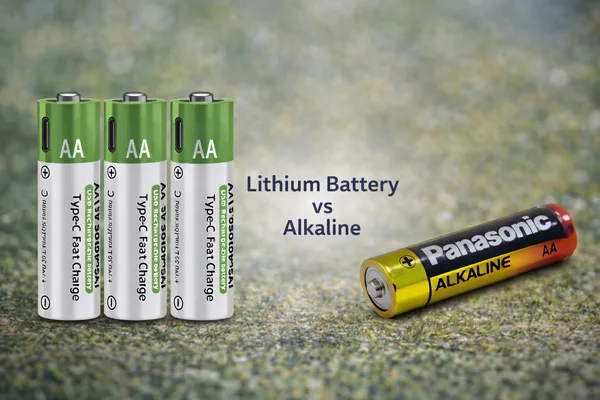
Image source: Bing (Web (fair-use with source credit))
Battery Drains Too Fast
Nothing ruins a scouting run like returning to a dead camera. Battery drain is the most common complaint among Moultrie owners, but it's also the most preventable.
Lithium Versus Alkaline
The single biggest factor in battery life is your choice of cell. Alkaline AA batteries lose voltage as they discharge. Below about 1.2 volts per cell, the camera can't fire the shutter reliably.
At that point you've got a box full of useless batteries.
Lithium AA batteries maintain a steady 1.5 volts until they're nearly empty. They also handle cold far better. At 10°F, lithium cells deliver about 95% of their rated capacity.
Alkalines deliver about 40%.
Manufacturer testing shows that an 8-AA Moultrie camera using lithium batteries in moderate temperatures captures roughly 8,000 images before the batteries need replacement. The same setup with alkaline cells caps out around 3,500 images.
Display Timeout and Test Mode Drain
The camera's LCD screen draws significant power. Every minute the display stays on costs you future captures. Most Moultrie models let you set a display timeout.
Set it to 10 seconds.
Leaving the camera in Test mode is even worse. Test mode keeps the PIR sensor active but also keeps the processor at full speed. If you walk away and forget to switch it back to On mode, you'll drain a set of lithium batteries in about 72 hours.
Cellular Upload Frequency
For cellular models, each image upload consumes roughly 0.03 watt-hours of battery capacity. That doesn't sound like much, but it adds up. At 50 images per day with real-time upload, you're looking at about 1.5 watt-hours daily.
With 8 AA batteries providing roughly 16 watt-hours total, that's about 10 days of battery life.
Switch to a once-daily upload schedule. That cuts the daily consumption to about 0.05 watt-hours for the connection overhead plus the batch upload. You'll get 30 to 40 days instead of 10.
Rechargeable Battery Packs
External battery packs solve the drain problem entirely. Moultrie sells its own Power Panel, a 6-volt rechargeable pack that connects via the external power port. It holds about 40 watt-hours, enough for 20,000 captures.
Third-party options exist, but check the voltage. Moultrie cameras expect 6 to 7 volts DC on the external port. Anything above 8 volts can damage the circuit board.
Stick with packs designed for trail cameras.
Cellular Models Won't Connect or Upload
Cellular trail cameras are brilliant when they work. When they don't, you're staring at a blinking LED with no idea what's wrong.
Signal Strength Versus Carrier Compatibility
Not all cellular bands are equal. Moultrie cameras typically support 4G LTE on AT&T, Verizon, or T-Mobile, depending on the model. But coverage maps lie.
A strong signal on your phone doesn't guarantee the same connection for your camera. Phone antennas are larger and more sensitive.
Check the signal strength bar on the camera's status screen. If it shows one bar or less, the camera simply can't maintain a reliable data connection. Move the camera to higher ground.
A 10-foot elevation gain can turn a weak signal into a strong one. Mount the camera on a tree facing the direction of the nearest cell tower.
Image source: Bing (Web (fair-use with source credit))
SIM Card and Plan Activation
A dormant SIM card looks like an active one. If you bought a camera with a pre-installed SIM, it may not activate until you register it through the Moultrie Mobile app. Some users report that the camera's LED blinks green but never turns solid green.
That's the camera telling you the SIM isn't activated.
Open the Moultrie Mobile app. Go to Device Settings. Check the activation status.
If it says Pending, follow the in-app activation steps. You'll need the camera's serial number and the ICCID number on the SIM card.
Firmware Mismatch Between Camera and App
Moultrie releases firmware updates regularly. If your camera's firmware is older than the app version, the two may not communicate properly. The camera may show as offline in the app even though it's working fine locally.
Check the firmware version in the camera menu under About. Compare it to the latest version listed on the official Moultrie support page. If they don't match, download the firmware file to an SD card and update the camera.
The 30-Second Power Cycle for Modems
Cellular modems are computers. They crash. A power cycle fixes most connection issues immediately.
Remove the batteries. Wait 30 seconds. Reinsert them.
The modem reboots and reconnects to the cellular network. If the signal strength is good, this clears 80% of connectivity problems.
SD Card and Firmware Problems
The SD card and firmware are the two least visible but most common sources of recurring trouble.
Wrong Card Class
Moultrie cameras work best with Class 10 SD cards. Higher-speed cards like U3 or V30 are designed for video and can actually cause problems. The camera's controller can't read them fast enough, leading to write errors and corrupted files.
Stick with Class 10 cards from SanDisk, Lexar, or Kingston. Avoid off-brand cards. They often have slower actual write speeds than their label claims.
Capacity should stay at 32GB or lower. Larger cards may work but can introduce formatting issues.
In-Camera Formatting
Always format your SD card in the camera. Computer formatting uses a different file allocation system. The camera may write files that your computer can read, but the camera may not recognize a computer-formatted card.
Insert the card. Go to the Format option in the menu. Confirm.
The camera erases the card and creates its own file structure. This takes about 10 seconds and saves you hours of troubleshooting.
Firmware Update Failed Mid-Cycle
Firmware updates are delicate. If the power fails or the SD card is removed during the update, the camera can become unresponsive. The screen may stay black, or the LED may blink rapidly.
Recovery is simple but requires patience. Remove the batteries. Remove the SD card.
Wait 5 minutes. Reinsert the batteries. If the camera boots, reapply the firmware update from scratch.
Use a freshly formatted SD card with only the firmware file on it. No other files.
Card Door Seal and Water Intrusion
Water damage through the SD card door is a common failure point. The rubber gasket around the door can dry out or develop cracks. A single drop of water inside the compartment can short the card slot.
Inspect the gasket before every deployment. If it looks dry or cracked, apply a thin layer of silicone grease. Close the door and listen for a solid click.
If the door doesn't feel tight, replace the camera. The gasket isn't a user-serviceable part on most Moultrie models.
Common Mistakes That Cause Recurring Problems
Some problems keep coming back because of what you're doing wrong. Here are the most common.
Mounting With Straps Too Tight
The strap that holds the camera to the tree can warp the camera housing if tightened too much. A warped housing puts pressure on the internal sensor mount. The detection zone shifts, and the camera misses animals.
Tighten the strap until the camera doesn't wiggle. Then stop. Don't crank it down until the strap creaks.
Leaving Test Mode On
Test mode is for setup only. It keeps the camera on full power and prevents it from entering the low-power sleep state. A camera left in Test mode for a week will drain its batteries.
After you finish setup, switch the mode dial to On. Check the status screen to confirm it shows On and not Test.
Pointing at Feed Pens or Water Sources
Feed pens and water sources attract animals. They also attract false triggers. The constant motion of birds, squirrels, and wind can overwhelm the PIR sensor.
Point the camera at the trail leading to the feed pen, not at the pen itself. That reduces false triggers and gives you better photos of animals moving naturally.
Ignoring Firmware Update Notes
Firmware updates often include bug fixes for specific problems. Ignoring an update because everything works fine is a gamble. The next problem may be one the update already solved.
Check the firmware version once per month. Set a reminder on your phone. It takes five minutes and saves hours.
Frequently Asked Questions
How do I reset my Moultrie game camera to factory defaults?
Remove all batteries and the SD card. Wait 30 seconds. Reinsert only the batteries.
Press and hold the Menu button while powering on. The screen should display a reset confirmation. Select Yes.
Why does my Moultrie camera take pictures but not save them to the card?
The card may be write-protected. Slide the lock tab on the side toward the contacts to unlock it. If that doesn't work, format the card in the camera using the Format menu option.
Can I use rechargeable AA batteries in my Moultrie camera?
You can, but they aren't recommended. Rechargeable NiMH batteries output about 1.2 volts, while alkalines and lithiums output 1.5 volts. That lower voltage can cause the camera to shut down early or not fire the shutter reliably.
How do I update the firmware on my Moultrie game camera?
Download the latest firmware file from the official Moultrie support page. Copy it to a formatted SD card. Insert the card into the camera.
Power on the camera. Go to the Update Firmware option in the menu. Follow the on-screen instructions.
What does a blinking red light mean on my Moultrie camera?
A blinking red light usually indicates low battery or an SD card write error. Check the battery voltage and the card first. If both are fine, the IR filter may be stuck.
Try the tap test described in the daytime blur section.
Why won't my Moultrie cellular camera connect to the app?
Check the signal strength bar on the camera's status screen. If it shows one bar or less, move the camera to higher ground. If signal is strong, restart the camera by removing batteries for 30 seconds.
Then recheck the app.