Razer BlackWidow V4 X Mechanical Gaming Keyboard Troubleshooting
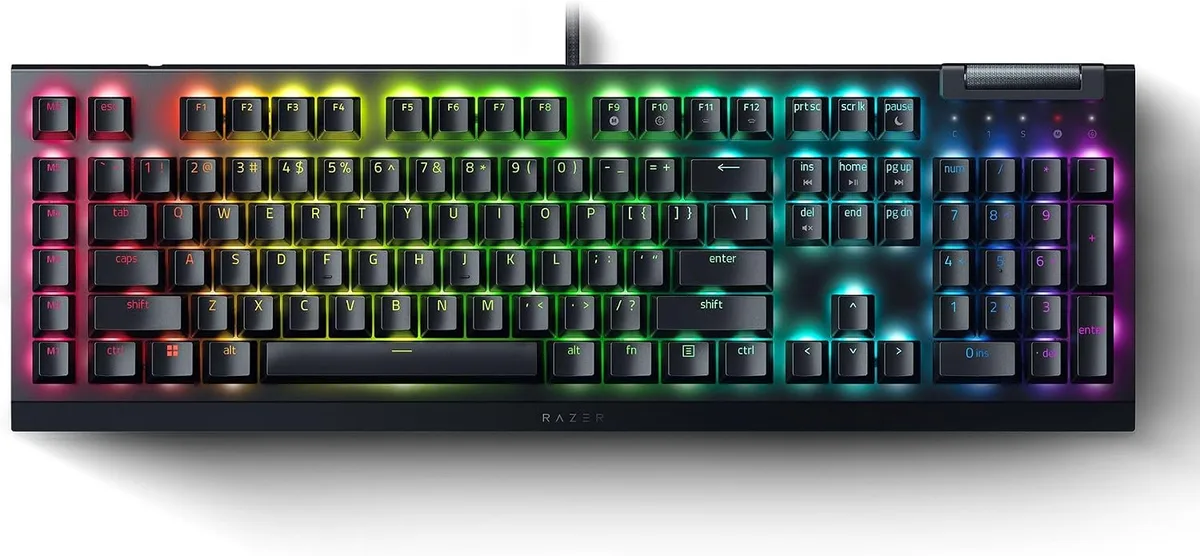
Image source: Bing (Web (fair-use with source credit))
Mechanical keyboards are built for heavy daily use, but software glitches and hardware wear can still disrupt your typing flow. Dealing with an unresponsive key or erratic lighting requires a systematic approach to isolate the root cause.
Effective Razer BlackWidow V4 X Mechanical Gaming Keyboard troubleshooting starts by separating physical hardware faults from background software conflicts. Manufacturer specifications indicate that these wired boards rely on 1000 Hz ultrapolling and robust mechanical switches designed for long-term durability. When things go wrong, a structured diagnostic routine saves time and restores full functionality quickly.
Quick Answer
Razer BlackWidow V4 X Mechanical Gaming Keyboard troubleshooting involves testing USB ports, reinstalling drivers, and cleaning mechanical switches. Unresponsive keys often need a simple port swap or debris removal. Software lighting bugs require restarting Razer Synapse 3 or performing a clean installation.
Hardware resets restore factory default settings instantly.
Common Razer BlackWidow V4 X Issues and What They Mean
Every keyboard malfunction usually points to a specific system breakdown. Recognizing the exact symptom helps you skip irrelevant fixes and focus on the real culprit. Aggregate reviews report that most user complaints involve erratic lighting, stuck keys, or sudden connection drops during intense gaming sessions.
Lighting freezes often mean that background software has stopped communicating with the onboard memory. When your macros fail to trigger, the issue usually stems from a profile synchronization error inside the configuration utility.
Physical typing delays point toward either a polling rate mismatch or minor dust accumulation beneath the keycaps. For gamers upgrading their desk setups, pairing this board with top-rated brewers or other desktop accessories creates a smooth, fully functional workspace.
| Symptom | Probable Cause | First Step to Take |
|---|---|---|
| Unresponsive single key | Debris or switch failure | Remove keycap and clear dust |
| Lighting frozen or unsynced | Software freeze | Restart background control utility |
| Macro keys not firing | Profile sync error | Re-assign macro in software |
| Random disconnection | Faulty USB port or cable | Plug directly into rear motherboard port |
Quick Triage: Hardware vs. Software Problems
Determining whether your problem lives in the physical hardware or the operating system saves valuable diagnostic time. Plug your keyboard into a completely different computer to test this theory. If the keys and lighting work normally on the second machine, your original PC has a software or driver conflict.
If the keyboard still misbehaves on a secondary system, the problem is physical. Hardware issues require cleaning, port changes, or firmware intervention.
Image source: Bing (Web (fair-use with source credit))
When troubleshooting physical switch performance, you can reference our favourite picks to see how standard mechanical components should feel. Keeping a clean desk environment protects your gear, much like choosing a reliable machine for intensive digital tasks.
Step-by-Step Fixes for Unresponsive Keys and Chattering
Key chattering occurs when a single keystroke registers twice, or an unresponsive key refuses to register at all. Pull the affected keycap straight up using a wire keycap puller to inspect the switch housing. Compressed air blasted at a short angle clears out trapped dust and pet hair that disrupts metal contact leaves inside the switch.
If cleaning fails, test the key using a keyboard testing web utility to confirm the input failure. Factory resets can also clear temporary microcode errors in the keyboard controller.
Disconnect the USB cable, hold down the Escape, Caps Lock, and Space bar keys simultaneously, and reconnect the cable. Keep holding those keys for roughly five seconds until the lighting flashes to confirm the reset.
Resolving Razer Synapse and Chroma RGB Glitches
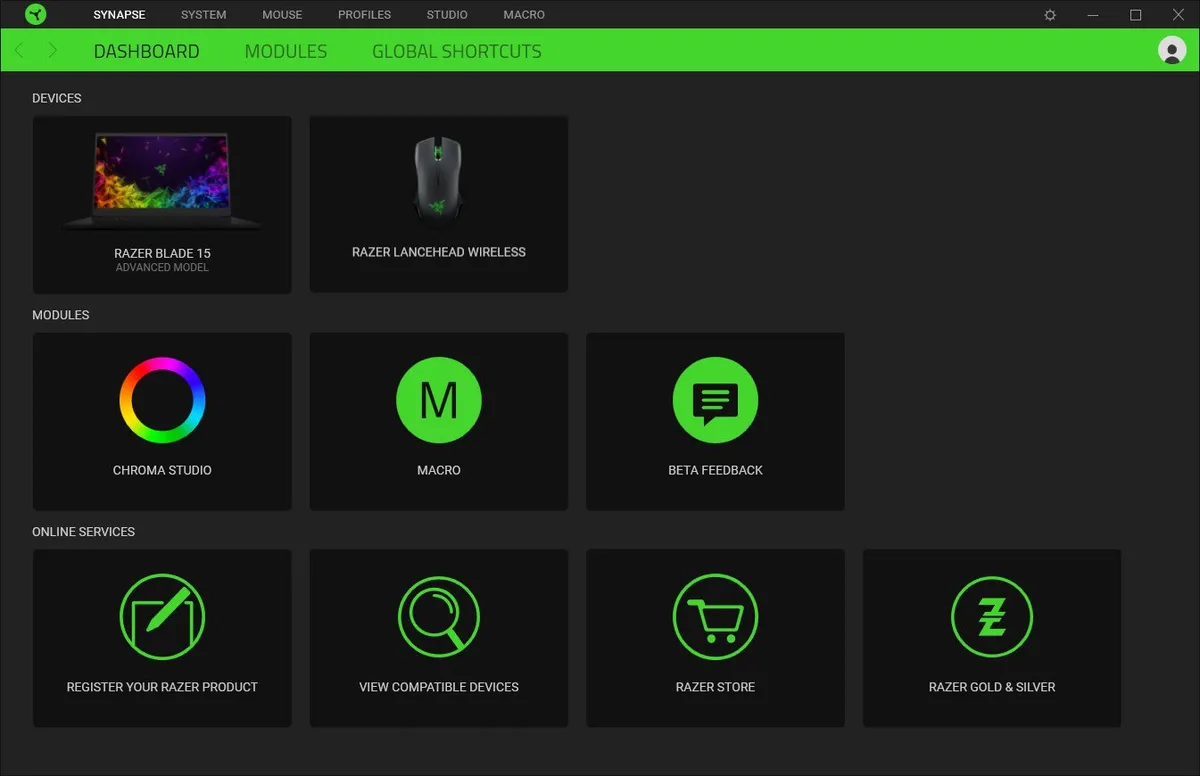
Image source: Bing (Web (fair-use with source credit))
Software conflicts often freeze your lighting effects or prevent custom macro assignments from saving. Start by ending all background processes related to your configuration software through the Windows Task Manager. Restart the utility with administrator privileges to restore proper hardware communication.
If simple restarts fail, a clean software reinstall is necessary to clear corrupted configuration files. Uninstall the utility completely, clear out leftover registry folders, and download the latest version directly from official documentation sources like Razer Support.
For users managing multiple desktop peripherals, ensuring stable USB bus power prevents sudden device disconnections. If you rely on external hubs, make sure to use our favourite picks to maintain steady data transfer rates across all connected hardware.
Fixing Connection Drops and USB Recognition Failures
Random disconnects during gameplay ruin competitive matches and point to power delivery issues. Avoid plugging your keyboard into passive front panel hubs or monitors that lack dedicated power supplies. Connect the braided USB cable directly to a rear motherboard port to ensure a stable electrical current.
Open the Windows Device Manager and locate the Universal Serial Bus controllers section to inspect your port drivers. Right-click your USB root hubs, open the power management tab, and uncheck the box allowing the computer to turn off the device to save power.
This simple adjustment stops Windows from putting your keyboard to sleep during periods of typing inactivity. If recognition failures persist, updating your motherboard chipset drivers from the manufacturer site resolves deep-level communication faults.
Maintenance Habits to Prevent Future Keyboard Glitches
Preventative upkeep keeps mechanical switches crisp and responsive over millions of keystrokes. Dust your keycaps every two weeks using a soft brush or compressed air to stop debris from falling into the switch stems.
Avoid eating or drinking near your desk to prevent sticky liquid spills from ruining the internal circuit board. If a spill happens, disconnect the USB cable immediately, flip the keyboard upside down, and let it dry completely before attempting further use.
Storing your peripherals in a dust-free environment when traveling extends the lifespan of both mechanical components and exterior finishes. Regular software updates also ensure your device firmware stays compatible with modern operating systems and security protocols.
Frequently Asked Questions About Razer BlackWidow V4 X Troubleshooting
How do I factory reset my keyboard?
Unplug the USB cable from your computer entirely. Press and hold the Escape, Caps Lock, and Space bar keys simultaneously. Plug the cable back into a live USB port while holding those three keys.
Release them after five seconds when the keyboard lighting flashes to confirm the reset.
Why are my macro keys not working?
Macro execution problems usually stem from outdated background software or unassigned profile bindings. Open your configuration utility and verify that your macros are assigned to the correct dedicated macro keys. Reinstalling the configuration software resolves persistent execution failures caused by corrupted local profile files.
What causes double typing on mechanical switches?
Key chattering happens when microscopic dust particles settle inside the switch housing and interfere with the metal leaf contacts. Cleaning the switch with compressed air or applying a specialized contact cleaner usually stops the erratic double inputs. Severe switch wear requires professional desoldering and switch replacement.
Can I use the keyboard without installing software?
Basic typing, media controls, and default lighting effects work without installing any background configuration software. Advanced macro recording, custom per key lighting profiles, and polling rate adjustments require the companion configuration utility to run in the background.
How do I fix frozen RGB lighting?
Frozen lighting effects indicate a communication freeze between your operating system and the keyboard controller. Restart your background software through the Windows Task Manager to re-establish lighting control. Reinstalling the software package fixes recurring synchronization bugs.